
Healthcare company
💡Thanks to its flexibility, Timezynk is an excellent choice for companies in a variety of industries, such as healthcare, recruitment, consulting and management services, hospitality, and the real estate sector.
While some companies thrive with Timezynk's default settings, there are also businesses that need to customize the system according to their specific needs.
Below is a description of how a hospital can adjust its settings to achieve the best possible results.
Settings for hospitals
A hospital typically has varying shifts, as operations need to be available 24/7 and staff often work on-call. An example of a schedule structure for a hospital may include fields with information such as department, task, and what permissions the employee has during the shift. Additionally, it may be beneficial to add a field for optional comments, if needed to include more unique and relevant information to be noted in connection with the shift.
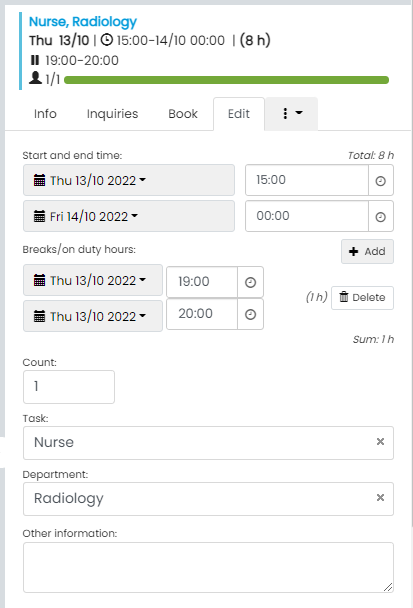
The image above displays when you create or edit the shift.
In the example above, Coco is scheduled as a nurse with working hours in Radiology between 15:00–00:00. Based on your preferences, you can customize what information should be displayed in the shifts and specify the usual settings for the number of users.
💡If you need multiple employees to work the same shift, you can adjust the count by clicking on the shift > Edit > Count.
Below you will find detailed instructions on how to create a similar structure in your schedule.
Reset the Unit register (if you have more than one device)
- Go to ⚙️ > Settings > Register Settings.
- Click on Show archived in the upper right corner.
- Find the row with the title Unit and click on the tool to the right.
- Click on Reset register to reset to the left.
Add the Unit register (if you have multiple devices)
- Go back to Register Settings and click on Shift.
- Click on + Add and scroll down the list in the Type field until you find Register.
- Select Unit and click on Save.
Remove the Customer register from your shifts
- In the register Shift, click on Customer.
- Then click on Edit which is located on the right.
- Click the Archive button at the bottom of the box.
Contact us to activate the module for multi-day passes
- The multi-day pass module allows you to create passes that start one day and end another.
Before activation begins, there is a procedure that can be used. In the end time field, you enter an end time that is earlier than your start time. This way, the system will interpret the shift as spanning multiple days.
Change the order of the fields in your shifts (optional).
- You can drag and drop the fields to change their order. You do this by pressing the 6 small dots to the left of the field and then dragging it up or down.