
Cleaning company
💡Thanks to its flexibility, Timezynk is an excellent choice for companies in a variety of industries, such as healthcare, recruitment, consulting and management services, hospitality, and real estate.
While some companies do very well with Timezynk's standard settings, there are also businesses that need to customize the system to meet their specific needs.
Below describes how cleaning companies can adjust their settings to achieve the best possible results.
Settings for a cleaning company
A cleaning company usually needs to manage a large number of different customers, locations, and tasks. To meet these needs, it is essential to be clear about when, where, and how the work should be carried out, as well as by whom or which teams are responsible for the execution.
The example below shows what specific information should be provided for the shift, such as customer and task. The combined title also contributes to a clear connection between the task and the customer.
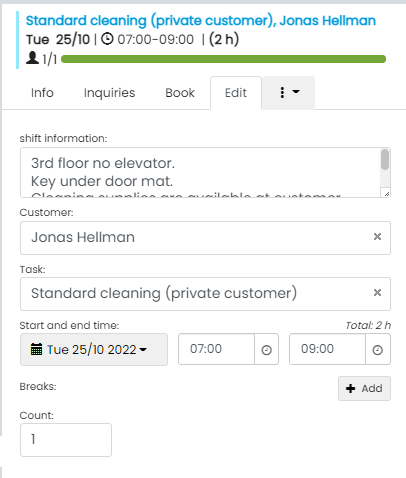
👀It is important to add fields to the customer register and then link the customer register to the shift.
Add fields to the Customer Register
- Go to Register Settings ⚙️ > Settings> Register Settings
- Click on the register named Customer and then press + Add at the bottom.
- Add relevant fields (in the above example, the following fields are present; shift information => Text, multiple lines under General, address => Address under General, customer's email => Email under General and customer's phone number => Phone under General.
Make the customer register visible on passes
- Enter Register Settings and then the register Customer.
- Click on the Edit button on a field that you want to be visible on the shifts.
- Check the box Show in linked registers and then click on Save. Do this for all relevant fields.
Configure a combined title for passes
- Enter Register Settings and then the register Shift.
- Under Fields, there is a box named Combined Title. There you can choose what type of information should be displayed on shifts by clicking the box.
- In the example above, task and customer are selected as the combined title.
Change the order of fields in your shifts (optional).
- You can drag and drop the fields to change their order. You do this by pressing the 6 small dots to the left of the field and then dragging it up or down.
💡 It is not uncommon for employees in cleaning companies to have multiple clients per work shift. Timezynk can warn you if you have booked users with connected shifts, or if the shifts are very close in time, to prevent double bookings. If you want to bypass this function, you can do the following: open the shift by going to Edit and uncheck/adjust the setting in the Allow double booking box.