
Manage absence
Your employee is sick or caring for a sick child.
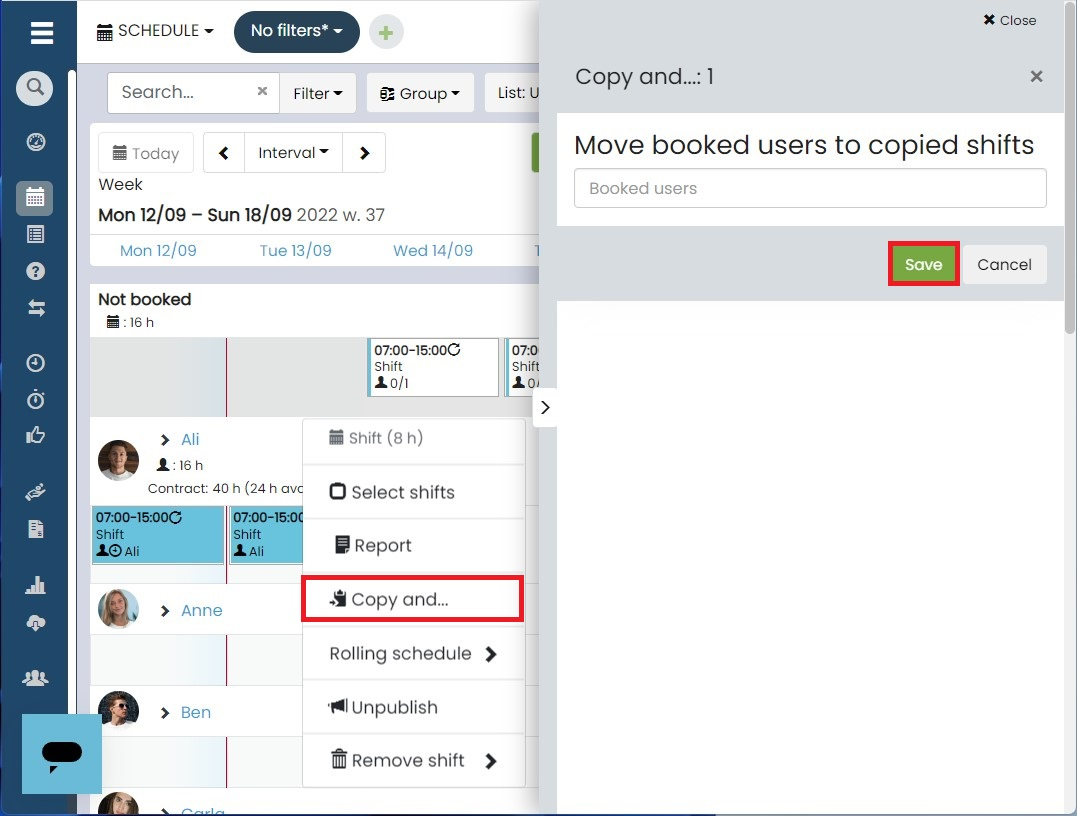
Start by copying the shift the employee was scheduled to work, so you can book it for someone else.
- Open the Schedule view.
- Right-click the shift and select Duplicate and replace.
- Finish by clicking Save.
An unbooked copy is created, which can either be moved to another employee’s schedule or booked via the booking tool.
The next step is to register the absence for the employee.
- Click on the original shift
- Navigate to the Edit tab and change the task to Sick or Childcare Leave.
👀 If you do not use Tasks in the schedule, you should instead select the time code Sick or Child Sick Leave.
Your work group is planning to take paid leave.
To communicate requests, employees can create availability reports in the app. These reports give you a clear overview of vacation plans and help you plan operations based on them.
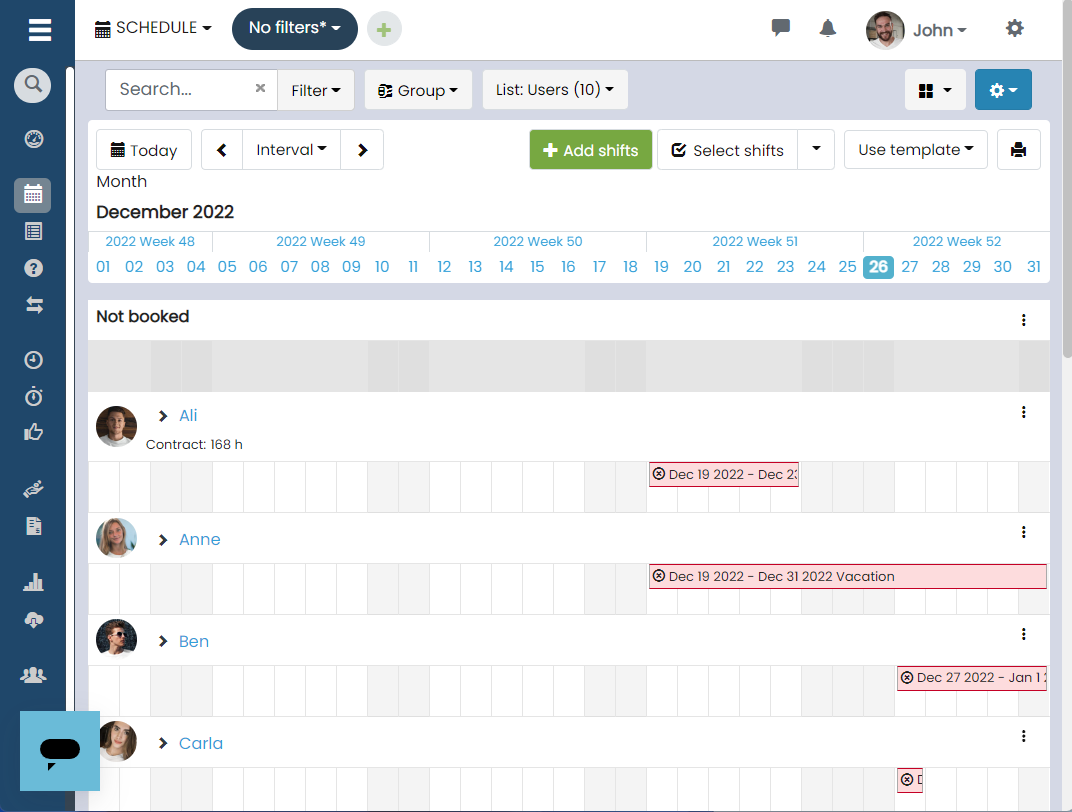
To approve employees' vacation requests, you can schedule the employee for shifts and select Vacation under Task or Time Code.
👀To save time, you can plan longer vacation periods by using a rolling schedule.
👀 If you need to decline a vacation request, simply schedule the employee for their regular shifts.