How do I configure the time clock?
📢Contact our support to activate the time stamp on your account.
You can find the settings for the time clock by clicking on ⚙️ > Time clock under Options.
Link to the Time Clock
At the top, you will find the link to the company's time clock. This is the link that your employees must be able to access to clock in and out.

Approved Devices
Here you can see which devices are approved for clocking in and out.
To approve a device, a person with owner or manager role must log in to the device and then approve it on this page. After that, all staff must use the approved device for clocking in and out.
👀You can also choose not to add any specific device. In that case, all devices will be allowed, and the staff can clock in from any device.

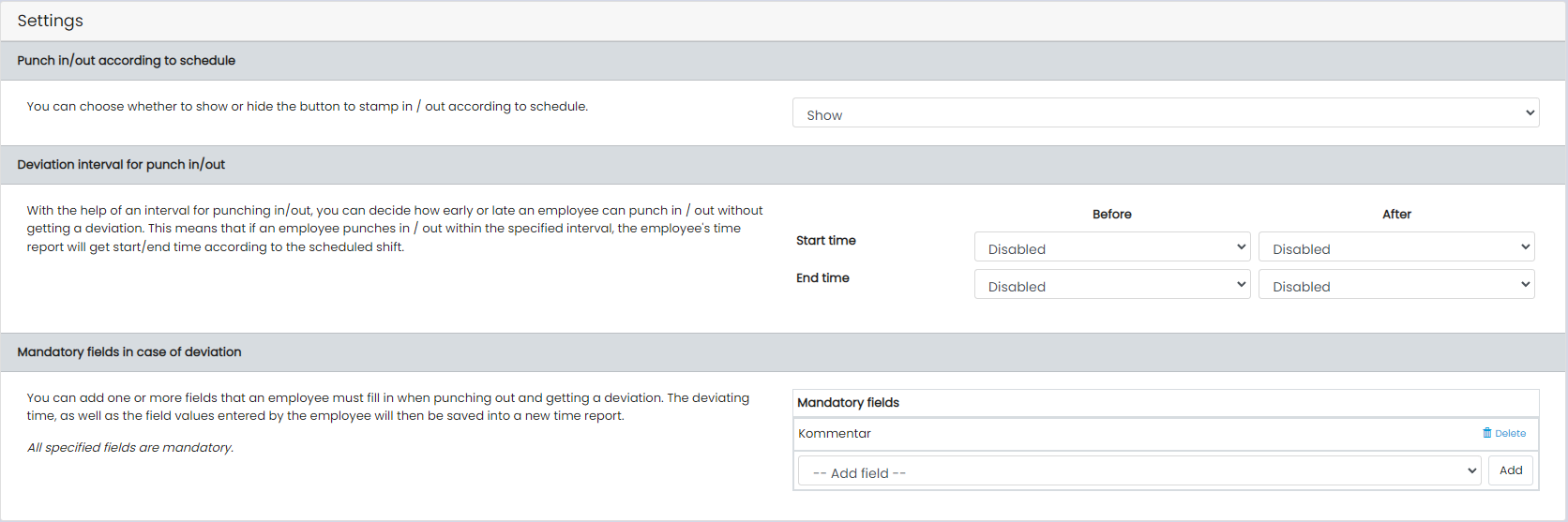
Settings
- Clock in and out according to schedule: Specify whether the button to clock in and out according to schedule should be visible. If the button is enabled, users can click it at any time during their work shifts, thereby reporting that they have worked the time specified in the shifts.
- Deviation interval for clocking in and out: Specify how flexible you want to be regarding start and end times. As long as users clock in and out within the specified times, no deviation report will be generated.
- Mandatory fields for deviations: If a user clocks in or out outside your approved times, a deviation report is created. Specify here which mandatory fields the user must fill in.