How do I invoice for the first time?
Preparations before you can start creating and transferring invoice documentation
In order to create and transfer invoice documentation, a number of activities need to be carried out.
- Activate the module linked to your invoicing system in Timezynk. Please contact our support, and we will help you complete this.
- Integrate Timezynk with your invoicing system. E.g:
- Fortnox
- Spiris
- Create invoice articles and ensure that the article numbers correspond to those already existing in your invoicing system.
- Create invoice agreements that specify the rules applicable to your invoice articles.
- Add customers in Timezynk and ensure that the customer list in Timezynk matches that in your invoicing system.
- If you are using project codes and/or cost centers, ensure that these exist in both systems.
Create invoice documentation
- Go to Invoice in the menu on the left.
- Select the time period you want to invoice
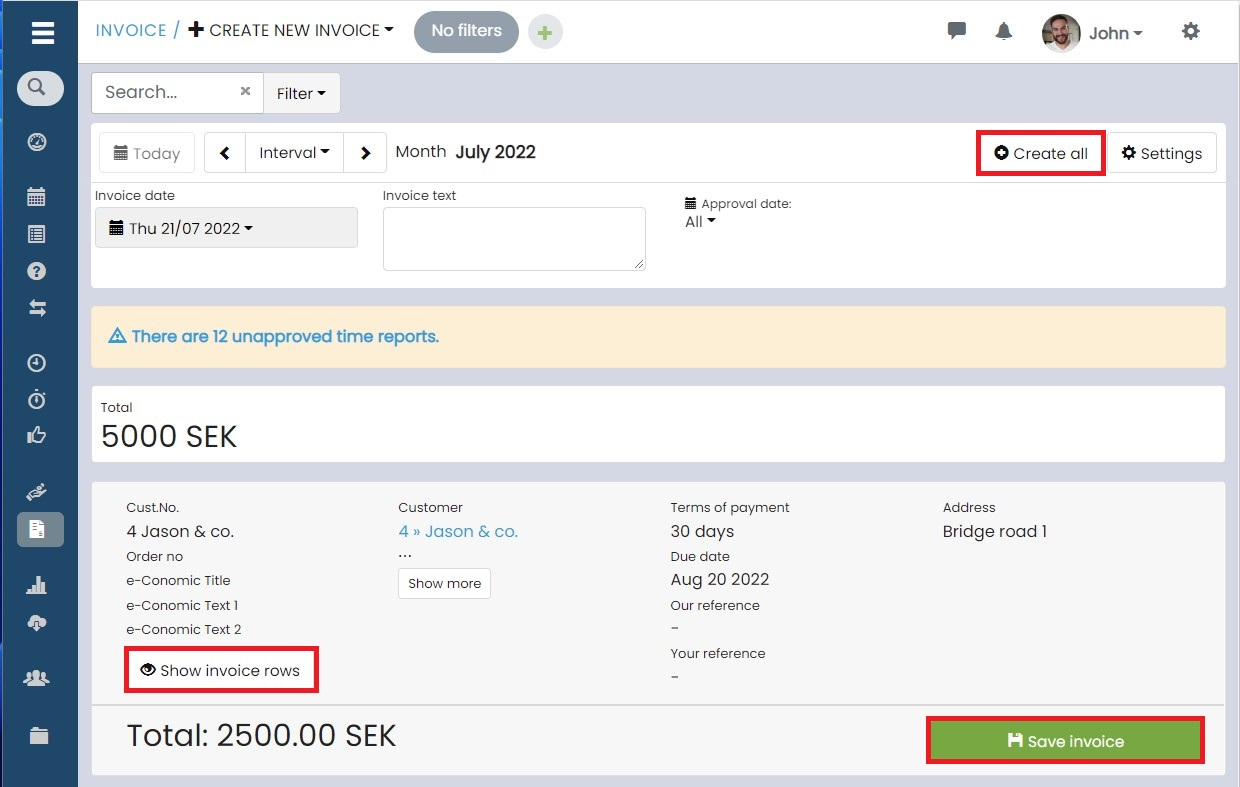
- Click on + Create new invoice at the top right.
Once the system has matched all approved time reports against your invoice agreement, it generates a number of invoice documentation.
You can then review the documents more closely by clicking on Show invoice lines. When you have checked everything, click on Save invoice documentation to save an individual invoice documentation, or select Create all to save all automatically generated invoice documentation.
👀You can update the content of each invoice agreement afterwards by clicking on the relevant invoice document. Remember to save your changes.
👀By default, all invoice documents are set to today's date, that is, the date when the invoice documents were created.
Transfer Invoice
To transfer an invoice, click on the invoice, scroll down until you see Transfers, and press the button Send to... (the name may vary depending on which invoicing system you are using).
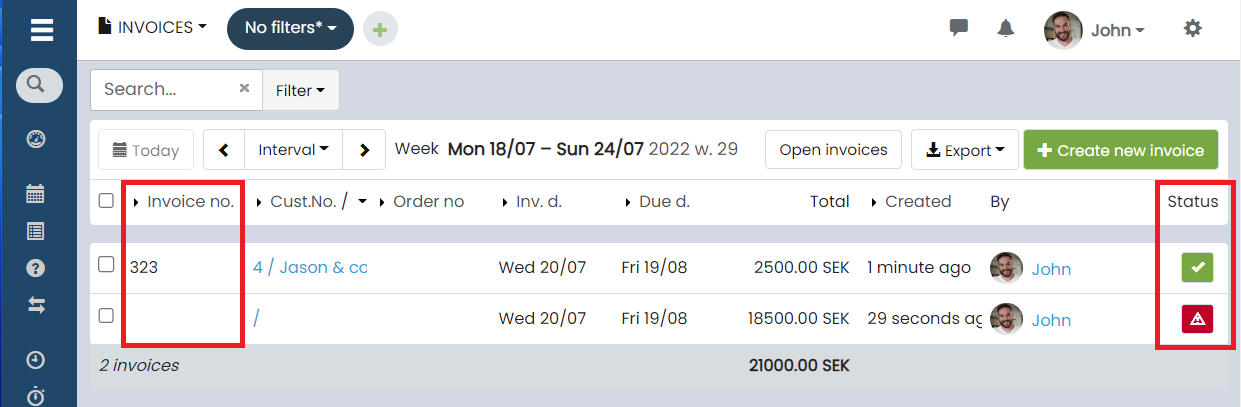
The status of the transfers is displayed on the Invoice page.
- If the transfer is successful, each invoice receives its own number and is marked with a green checkmark.
- If the transfer fails, the invoice are marked with a red triangle. More information about why the transfer failed can be seen by clicking on the respective invoice.