
Create a payroll agreement
Payroll agreement and salary rules
💡The salary agreement forms the basis for exporting to your payroll program. It controls how time reports are matched against salary articles. The salary articles in the agreement are linked to rules that can be customized according to specific dates, weekdays, or time intervals. A rule without a specified time period applies to all time reports.
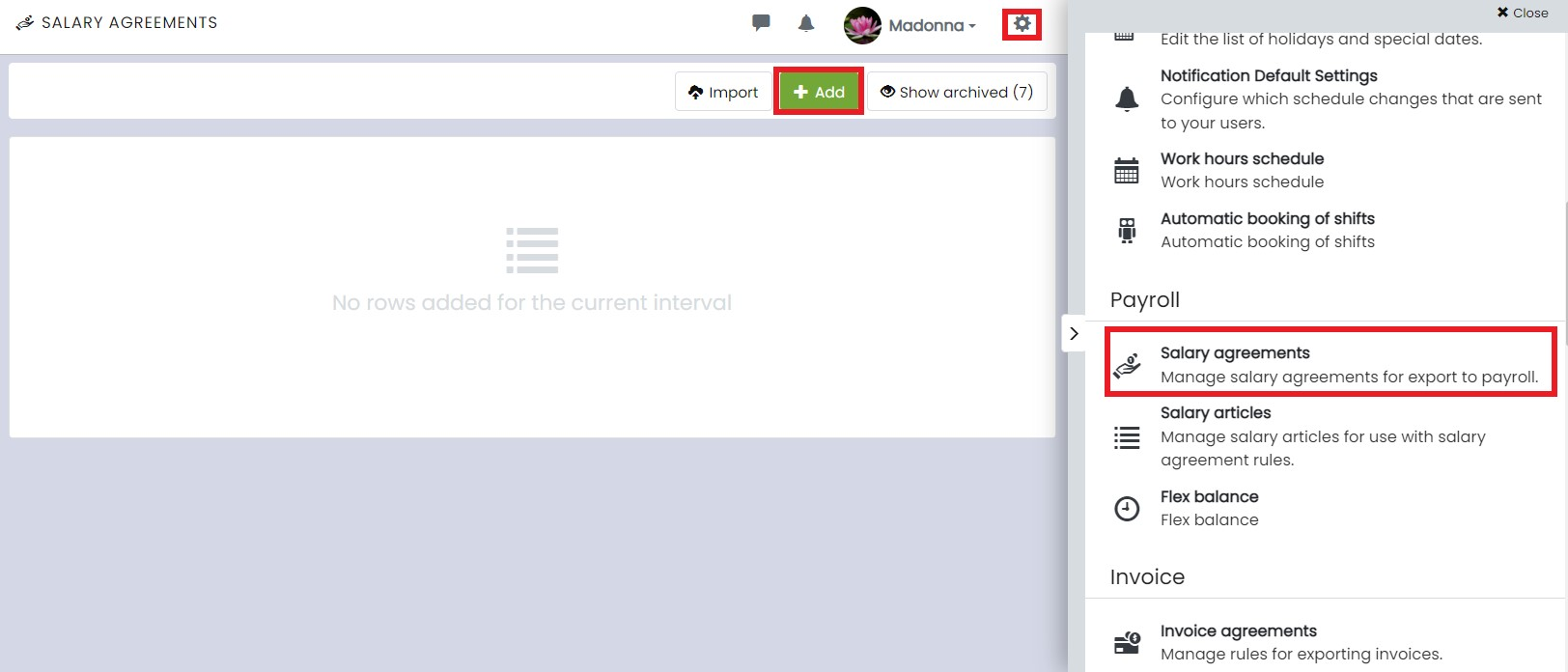
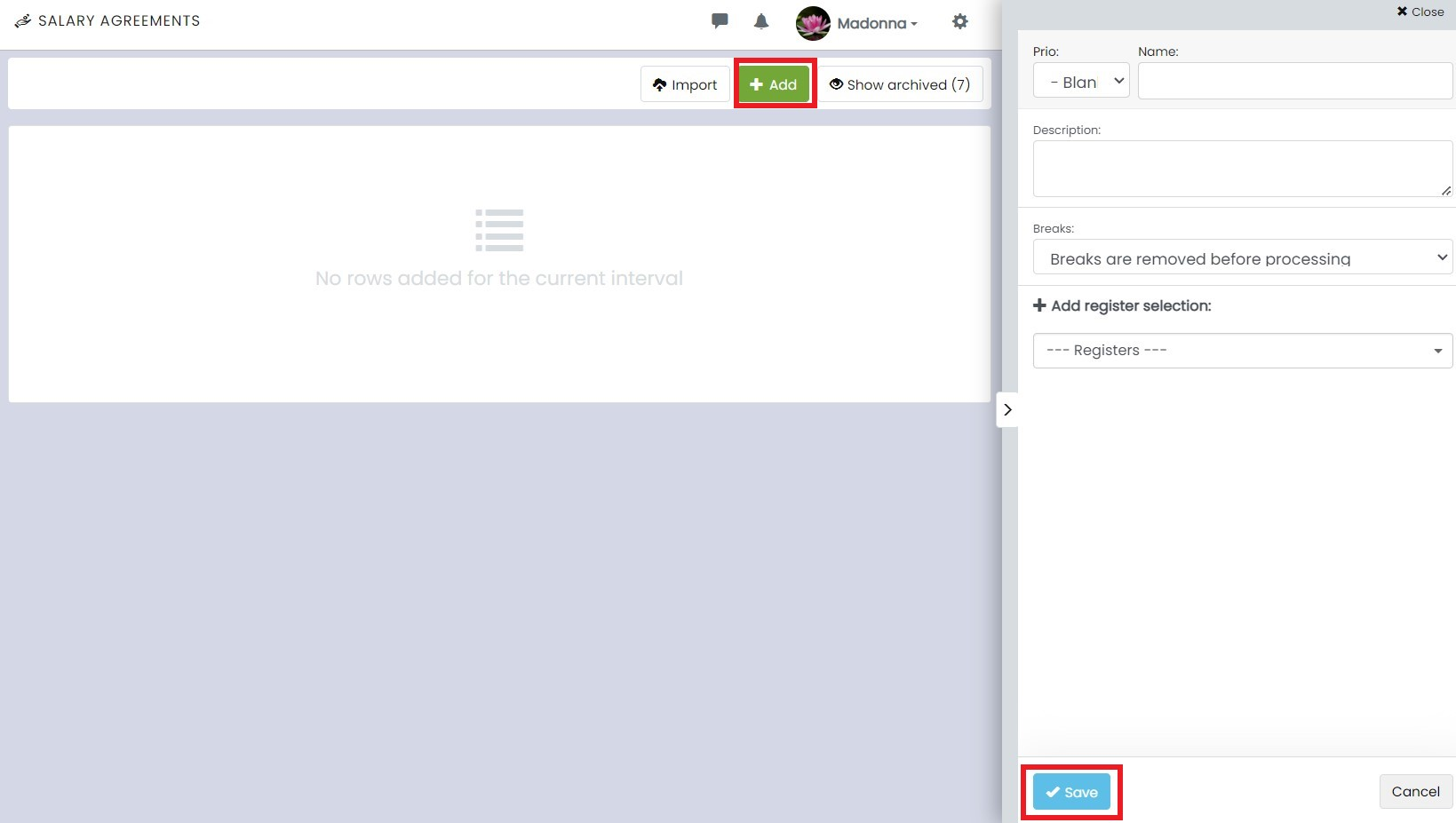
Start by clicking on ⚙️ > Payroll Agreement under Salary agreements and create a salary agreement by selecting + Add. Name the agreement, specify which registers it pertains to, and then click on Save.
Rule Groups
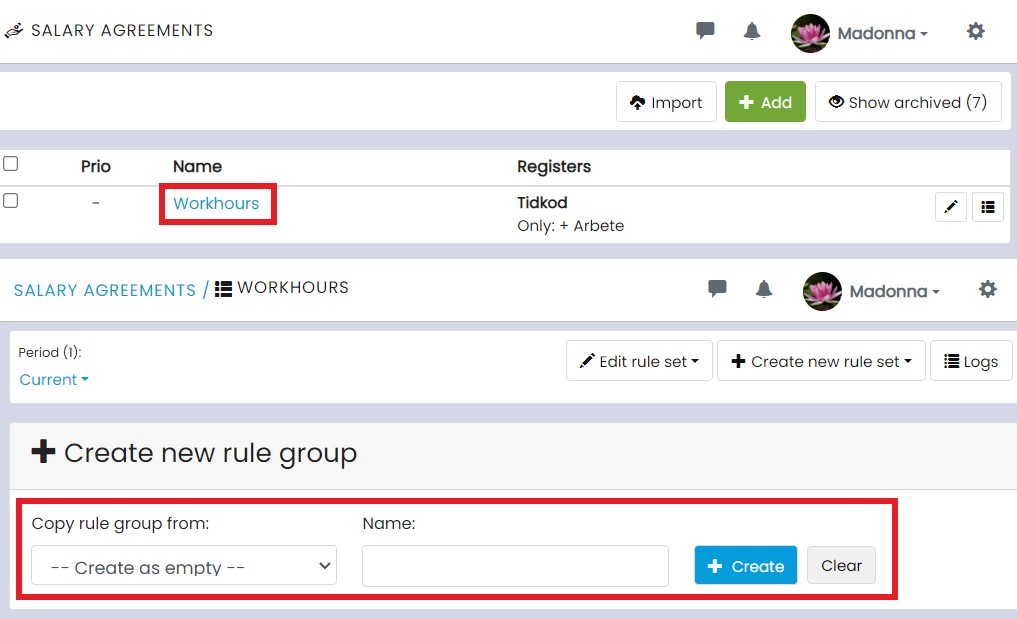
The rule groups in an agreement must always belong to a rule group. The rule groups interpret the time report and allocate it to salary articles. It is common to use several rule groups within the same agreement to distribute working hours for both regular working time and overtime. Create a rule group named Regular Time and one named Overtime Compensation.
Click into the contract and start by creating a rule group.
To add salary articles, click the button + Add on the far right. In the dropdown menu under articles you will see the salary articles you have added in Timezynk. Select the article that corresponds to normal working hours and click Save. Other settings you can make are as follows:
- Time selection: calculates working time, breaks, or both.
- Priority: the higher the priority, the lower the number. The highest priority is assigned to items that have the highest compensation.
Under Add filter you can further restrict the item:
- Date: select which dates the rule should apply to.
- From field: specify, for example, if the article should only apply to a specific user.
- Forbidden tags: specify tags that should not be included in the item.
- Holidays: choose whether the article should apply to holidays or major holidays.
- Required tags: specify the tags that are required for the article to apply.
- Register: specify whether the rule should only include or exclude a certain register, such as a customer or a workplace.
- Time interval: select a start and end time range for the rule.
- Weekdays: choose which weekdays the rule should apply to.
👀A rule without any time period will be valid for all time reports.
Rule Group Periods
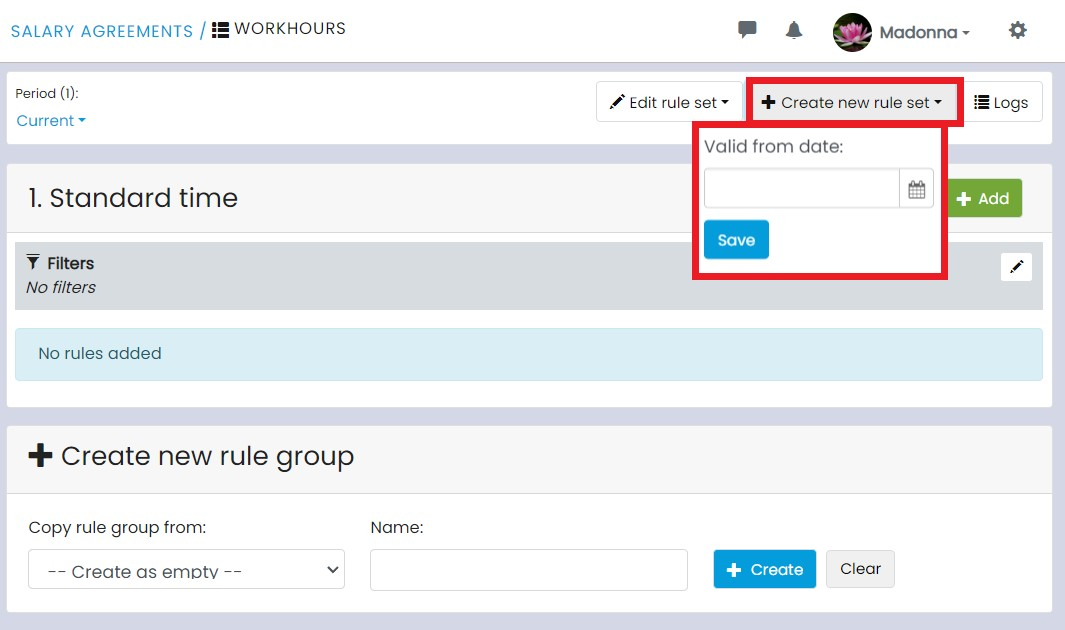
The second step in the process of establishing a salary agreement is to add a rule group period. The rule group period specifies the date from which the rules will apply. Click on Create new rule group period, enter the start date, and then select + Add.
There is always one rule group period by default. If you add additional rule group periods, they will be added after the first period, in the order they are created.
💡When a collective agreement is updated, you should avoid changing the current period. Instead, create a new rule group period with new rules. The advantage is that the previous rules continue to apply to time reports that are reported before the new collective agreement comes into effect. However, if you update the rules within the existing collective agreement period, the new rules would also apply to previously reported time reports.